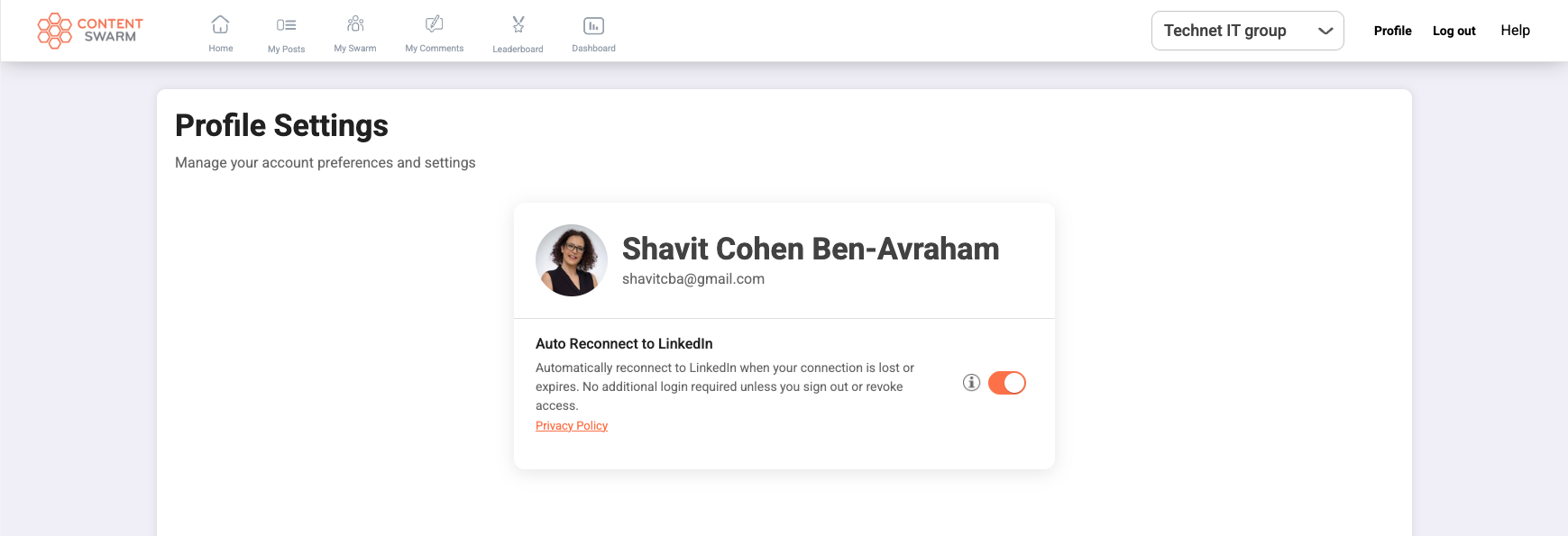
What is auto-reconnect?
Auto-reconnect helps keep your LinkedIn connection active automatically.
If your connection expires or is temporarily lost, Content Swarm will reconnect it in the background so you can continue working without interruptions.
Why did you add auto-reconnect?
We added auto-reconnect to:
Reduce unexpected disconnects
Avoid repeated manual reconnections
Make the LinkedIn connection more stable and reliable
Once enabled, it removes friction from everyday use.
Do I need to do anything to enable it?
Yes, but only once.
Each user needs to log in and approve auto-reconnect one time.
After that, everything works automatically.
Why am I redirected to the Profile Settings page after login?
If this is your first login, or if you haven’t approved auto-reconnect yet, you’ll be redirected to Profile Settings.
This step allows you to:
Review the auto-reconnect information
Choose whether to enable or disable it
Once approved, you won’t be redirected again.
What happens after I approve auto-reconnect?
After approval:
Your LinkedIn connection stays active automatically
No additional login is required
No further action is needed going forward
Everything runs quietly in the background.
Can I disable auto-reconnect?
Yes. Auto-reconnect is optional and fully under your control.
How do I disable auto-reconnect?
Go to Profile Settings
Find Auto Reconnect to LinkedIn
Turn the Auto-Reconnect toggle off
Your preference is saved immediately.
What happens if I disable it?
If auto-reconnect is turned off, your LinkedIn connection may expire or disconnect over time, and you may need to reconnect manually to continue using LinkedIn features.
What if I logged out or disconnected on purpose?
If you intentionally logged out or revoked access:
You’ll need to log in again to reconnect
You’ll be asked to approve auto-reconnect again
Once completed, automatic reconnection is restored.
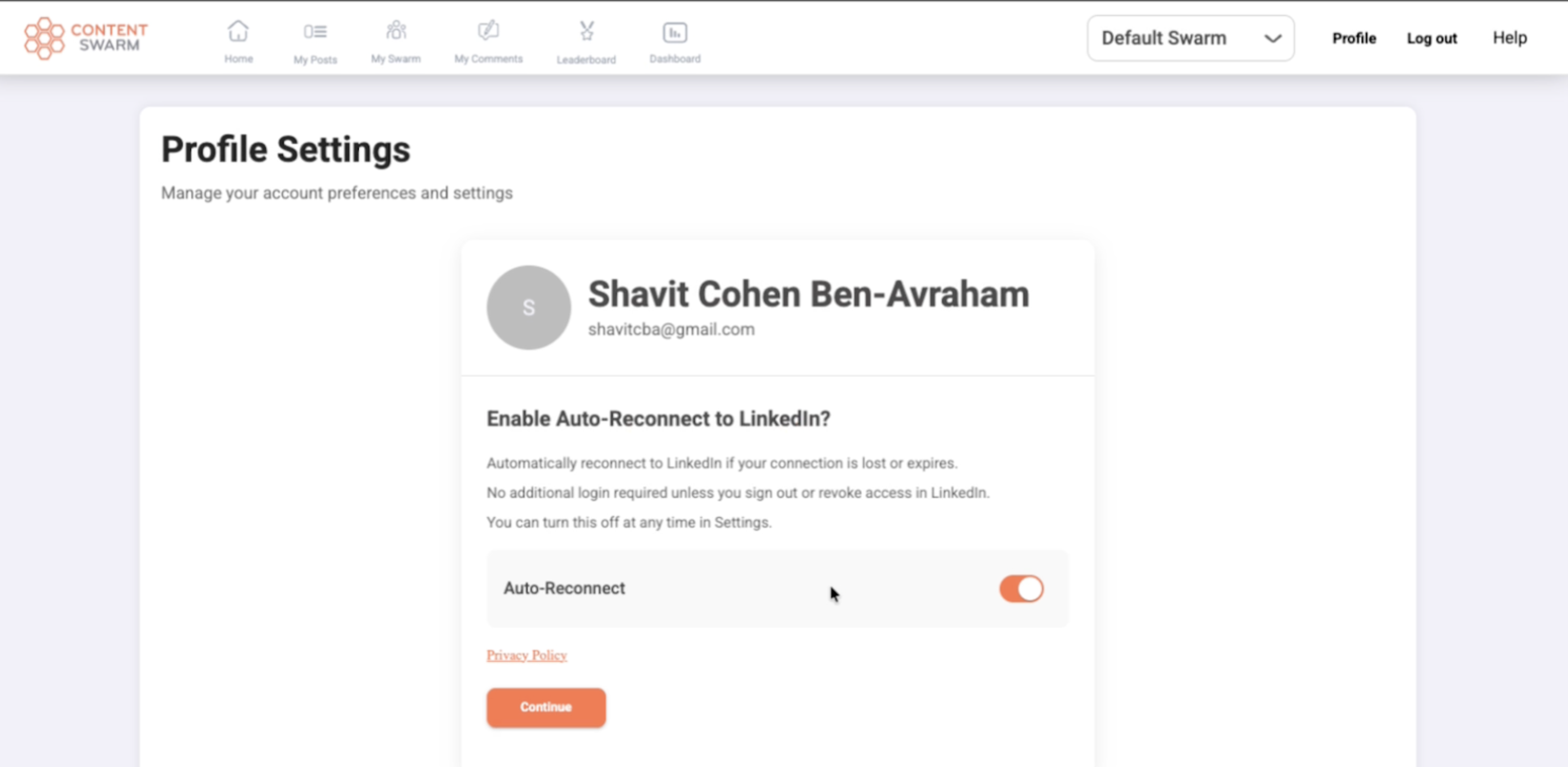 Image Caption
Image Caption